Discord Bot
 ESO Server Status
 AlcastHQ
 First Descendant




The ESO Build Editor can now import and export builds. This is a new feature in collaboration with CombatMetrics (In-game > Build Editor) and Caro's Skill Point Saver (Build Editor > In-game).
- Combat Metrics > ESO Build Editor
- ESO Build Editor > Caro's Skill Point Saver
Importing An In-Game Build To The Editor
Now you can import an in-game build directly into the ESO Build Editor. This will allow you to skip any manual work on the actual build, which significantly speeds up the entire build creation process.
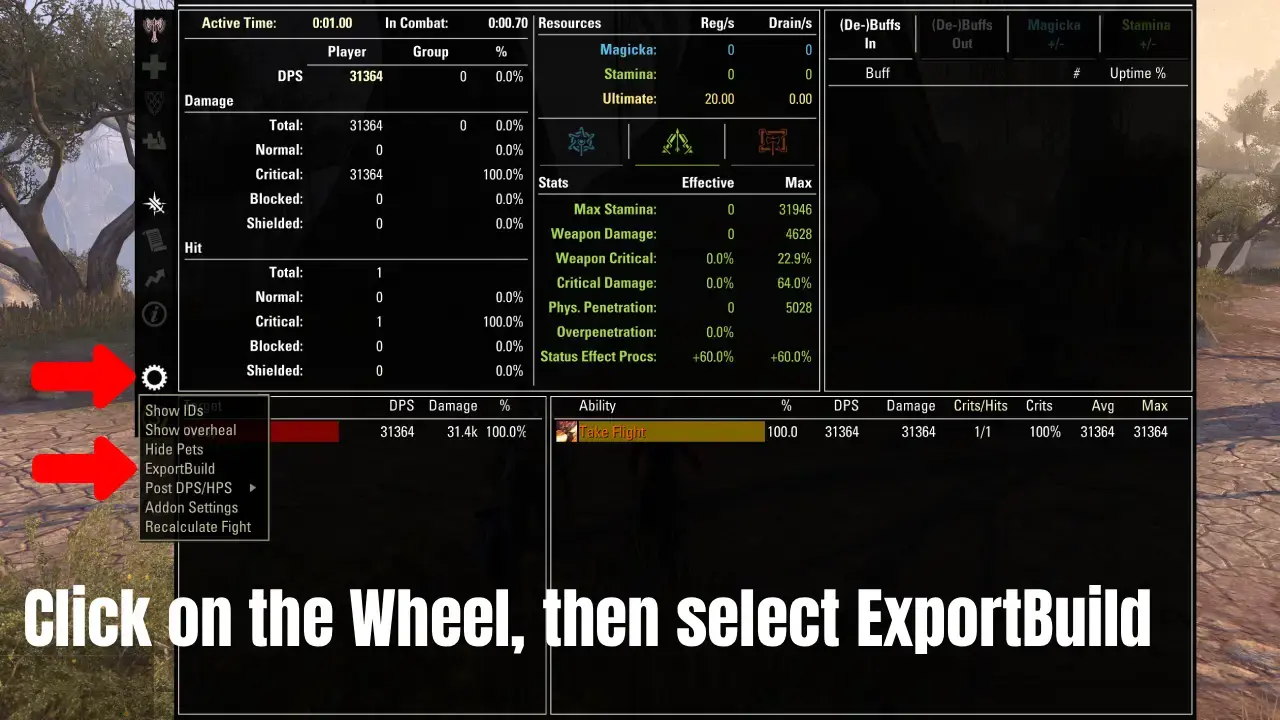
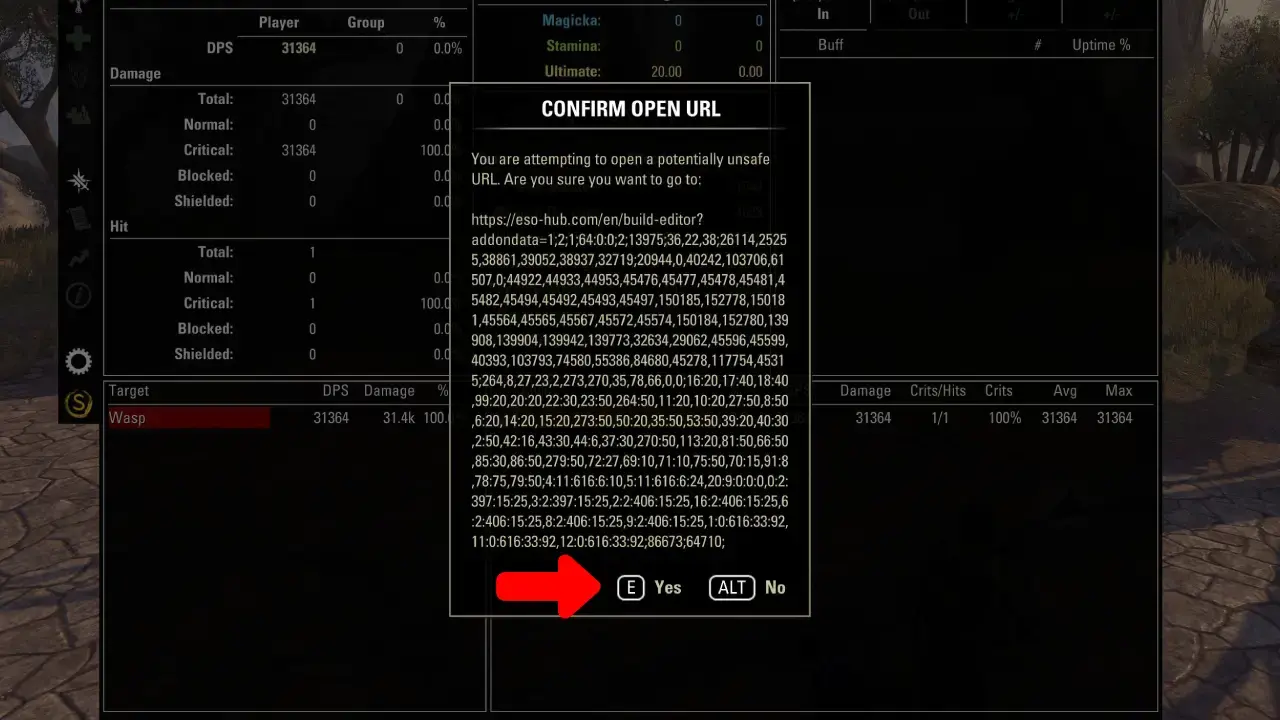
In Combat Metrics, click “Option” (Wheel icon), then select ExportBuild. This will open a pop-up that asks you to click “Yes” and then redirects you directly to ESO-Hub.com and complete the build import into the Build Editor.
- Select Option (Wheel Icon) in Combat Metrics.
- Click on ExportBuild.
- Click on Yes.
- Your build will be added to the ESO Build Editor.
- Add a title and any other details you want to include in your build.
- Click Save to store your build on ESO-Hub.com.
- You can view all your builds on your ESO-Hub Account page if you have an account.
Exporting From Build Editor To In-Game
To export a build from the ESO Build Editor to in-game you will need the addon Caro’s Skill Point Saver.
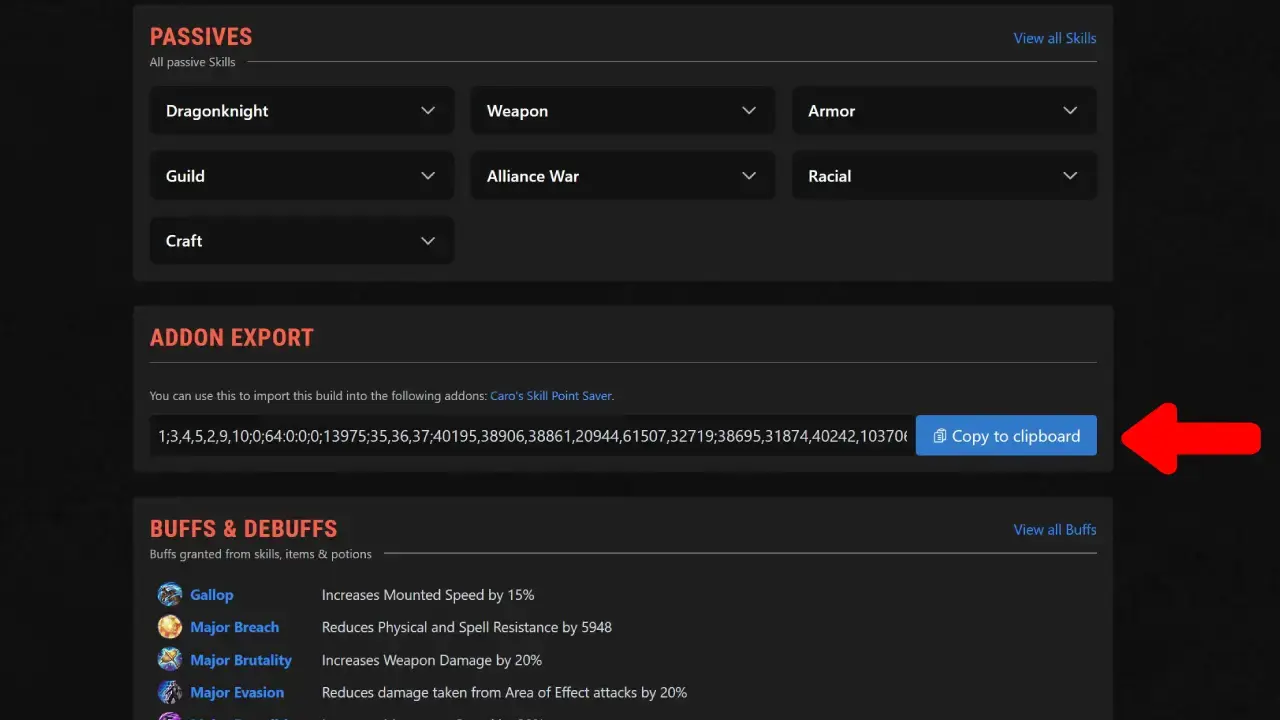
View any build in the ESO Builds Database, for example the DK Grind Build by Alcast and scroll down to the Addon Export section.
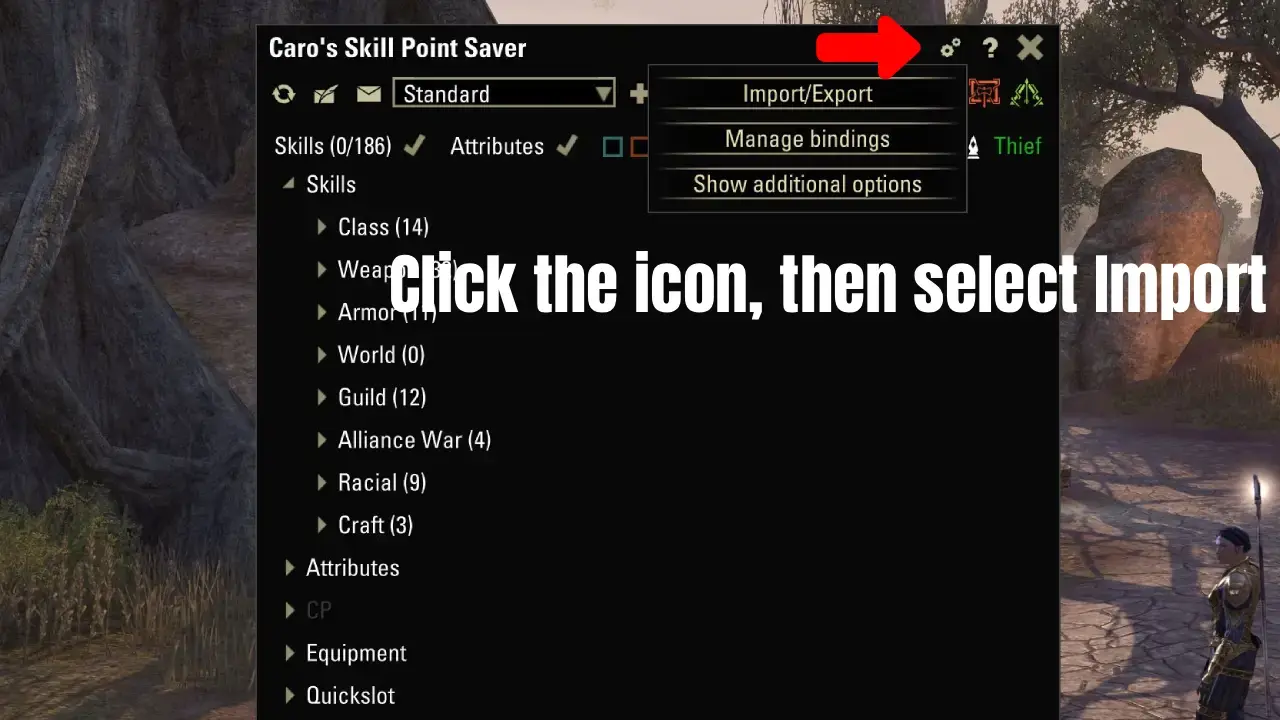
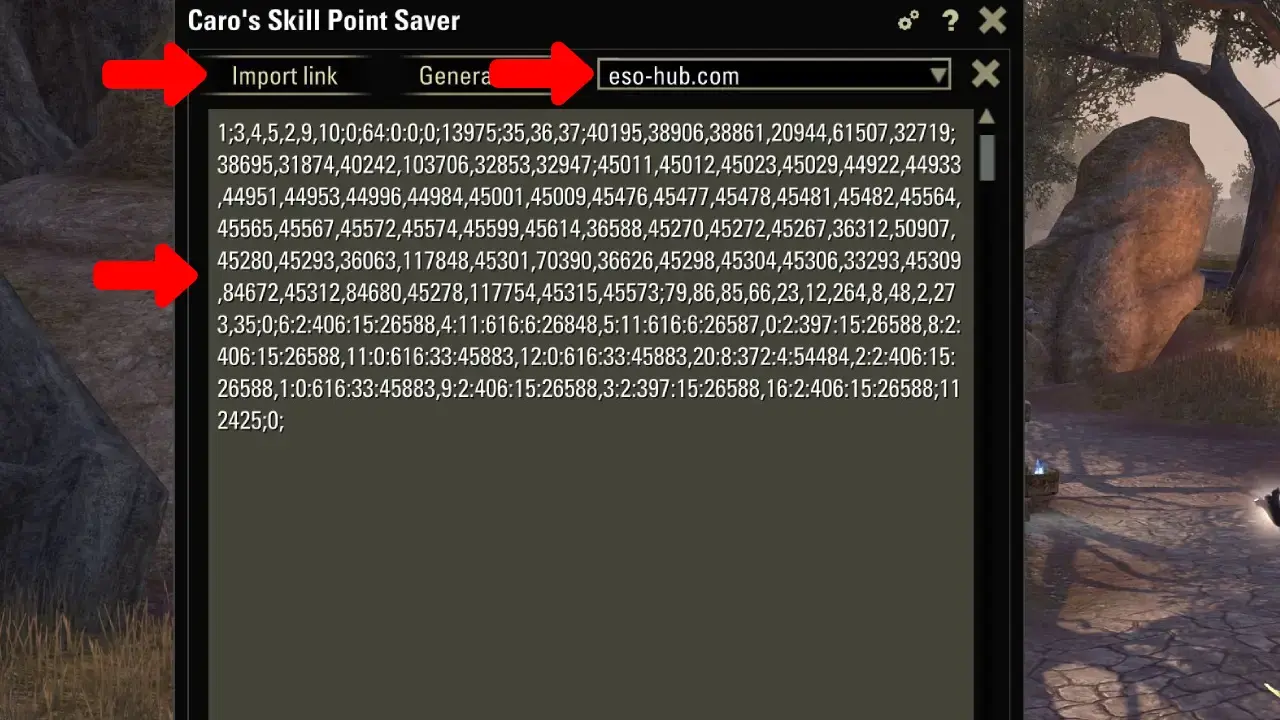
Click on “Copy to Clipboard”, then go in-game to Caro’s Skill Point Saver addon and click on the wheel in the top-right corner. Then add the string to the text field and click import. Now you have saved the build in-game
- Visit a Build, for example DK Grind Build by Alcast.
- Scroll down to the Addon Export section.
- Click Copy To Clipboard.
- Open Caro’s Skill Point Saver in-game.
- Click on the wheel in the top-right corner.
- Add the copied string to the text field.
- Click on import.
Create an Account On ESO-Hub To Save And Edit Builds
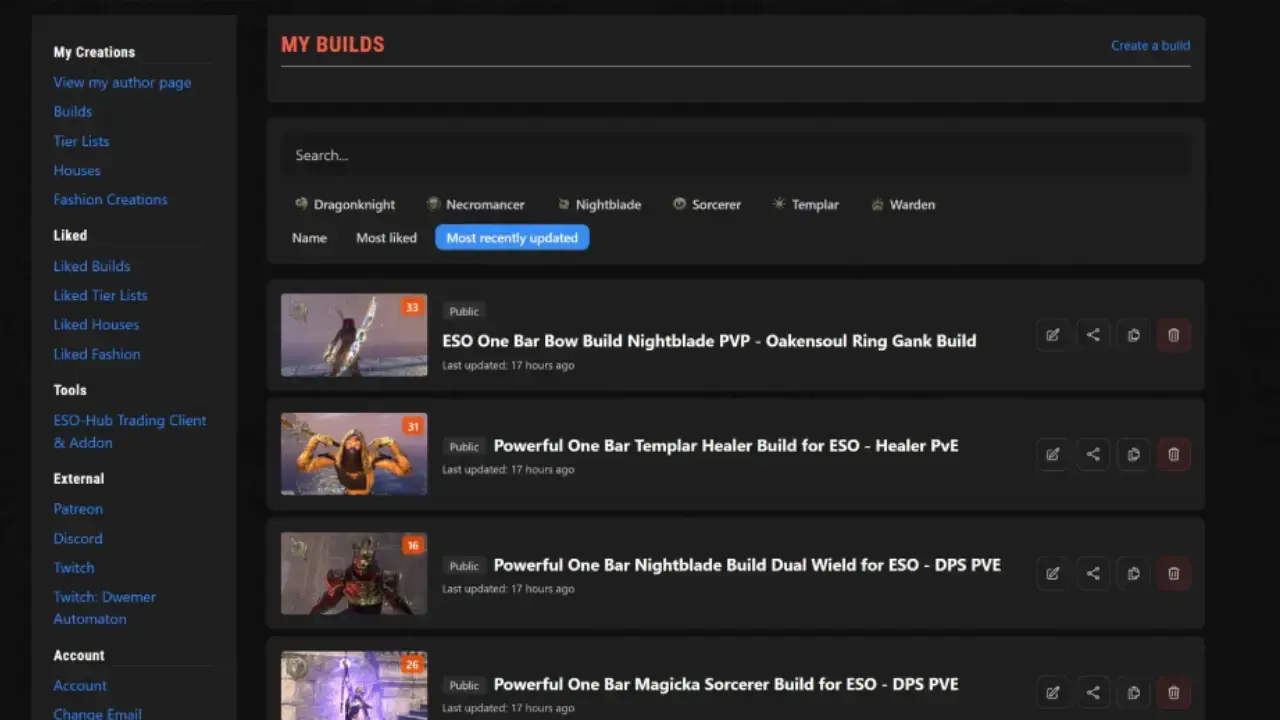
We recommend that you create an account on ESO-Hub.com to save and edit builds anytime in your account section. There are also plenty of other features available to account holders.
You will also receive an author page you can share with your friends so they can browse all your builds and content.
Thanks for reading! If you have any questions you can join our ESO Community Discord.